From Frustration to App Store: The Story of Workspace Profiles
Or, how I turned an annoying daily routine into a Mac app.
The Problem: The Tyranny of Manual Settings
Like many developers, my day is punctuated by context switches. I plug my MacBook into a docking station at the office, connect it to an external monitor at home, put on a headset for a call… and each time, it’s the same ritual: open System Settings, find the right Display panel, rearrange my screens, then go to the Sound panel to select the correct microphone and speakers. It’s a waste of a few seconds, but repeated multiple times a day, it became a constant source of frustration.
It was this small, daily annoyance that sparked the idea for a solution. A generic solution. A simple, lightweight app that would live in the menu bar and let me switch between my configurations with a single click. Today, I’m incredibly proud to announce that this idea has become a reality: Workspace Profiles is now available on the Mac App Store!
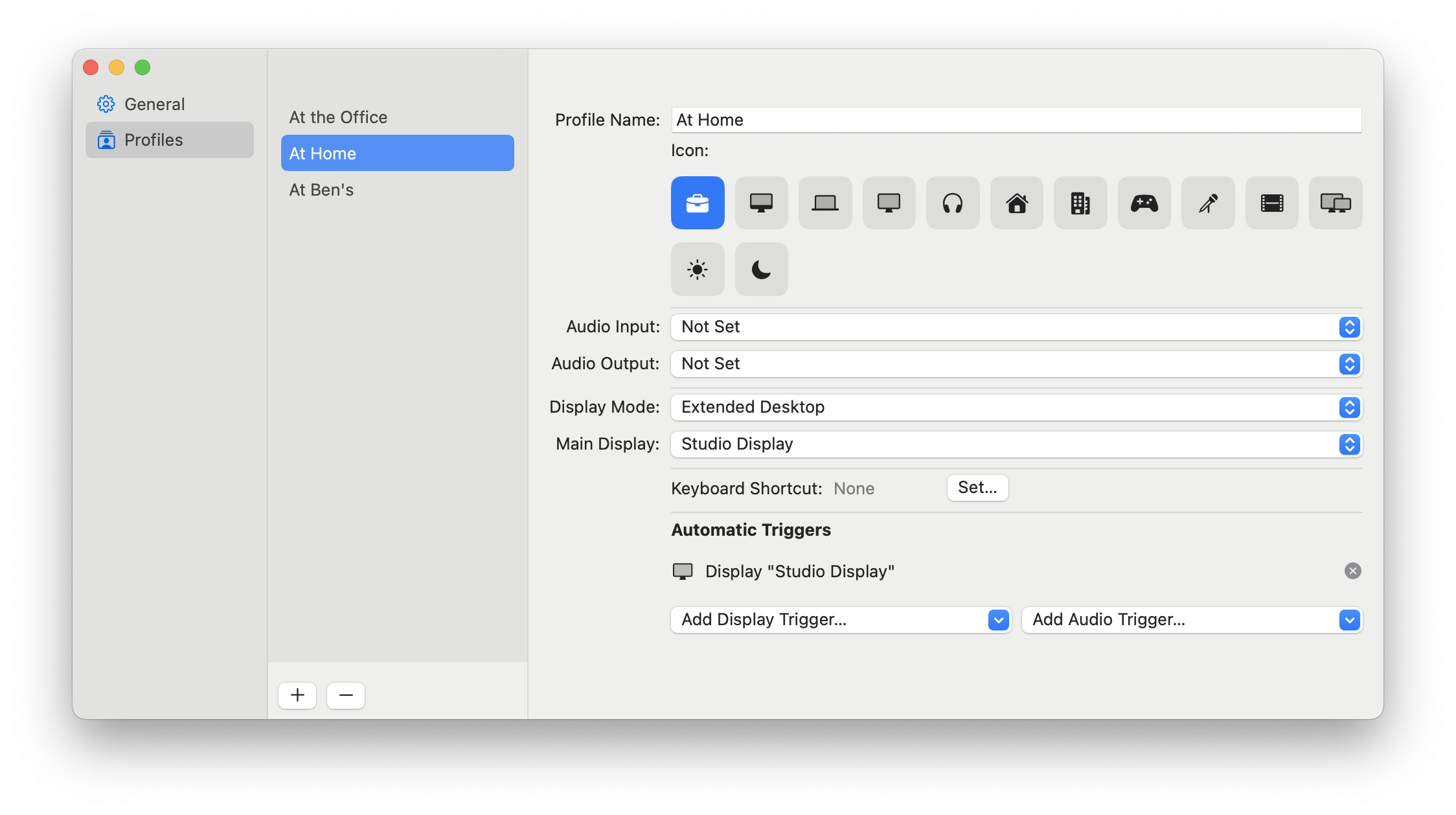
The Workspace Profiles settings window where you can configure your different profiles.
The core of the problem is simple: macOS remembers some configurations, but it’s far from perfect. If you use multiple external monitors or various audio devices at different times, the system can get confused.
My typical use cases:
- At the Office: My MacBook is connected to two Dell monitors. I want the left monitor to be my primary display, and I need the audio to come out of the monitor’s built-in speakers.
- At Home: I plug it into my Studio Display. This screen should become the primary one, and the sound needs to go through my external USB speakers.
- On the Go / Podcasting: Just the MacBook, but I want my external Rode NT-USE mic to be the default audio input as soon as it’s connected.
Each transition required manual reconfiguration. I wanted a solution that would understand the context and adapt automatically.
The Solution: Profiles for Every Workspace
Workspace Profiles is built on a simple concept: Profiles. A profile is a snapshot of a desired configuration. For each profile, you can define:
- Display Arrangement: Whether you want an extended desktop or mirrored displays
- Primary Display: Which of your monitors should have the menu bar and the Dock
- Audio Devices: Which microphone (input) and speakers/headphones (output) to use by default
Once you’ve created your profiles (e.g., “Office”, “Home”, “Presentation”), you can switch between them in three ways:
- Manually from the menu bar icon.
- With a global keyboard shortcut that you can set for each profile
- Automatically using “Triggers”.
This last feature is, in my opinion, the most powerful. You can link a profile to the connection of a specific device. For example: “When my Dell monitor is connected, automatically activate the ‘Office’ profile.” And just like that, the magic happens!
A Technical Look Under the Hood
Developing this app was an interesting journey into the low-level APIs of macOS, far from the usual comfort of SwiftUI. Here are a few of the most interesting technical challenges I tackled.
Detecting Hardware Changes
The first essential building block was knowing when a display or audio device was connected or disconnected. To do this, I had to dive into macOS’s C-based frameworks.
For displays, I used the CGDisplayRegisterReconfigurationCallback function from the Core Graphics framework. This allows you to register a callback function that the system will call whenever the display configuration changes.
For audio, it’s a similar approach with AudioObjectAddPropertyListener from the Core Audio framework. This lets you listen for changes to the kAudioHardwarePropertyDevices property on the global system object.
In Swift, the code to bridge these C calls looks like this:
// In HardwareManager.swift

func startMonitoringDisplayChanges() {
    CGDisplayRegisterReconfigurationCallback(displayReconfigurationCallBack, nil)
}

func startMonitoringAudioChanges() {
    var propertyAddress = AudioObjectPropertyAddress(
        mSelector: kAudioHardwarePropertyDevices,
        mScope: kAudioObjectPropertyScopeGlobal,
        mElement: kAudioObjectPropertyElementMain
    )
    AudioObjectAddPropertyListener(
        AudioObjectID(kAudioObjectSystemObject), &propertyAddress, audioDevicesPropertyListener, nil)
}
These callbacks then post a notification via Swift’s NotificationCenter so the rest of the app can react cleanly.
Handling Notification “Bursts”
A gotcha I quickly encountered, especially with audio devices, is that the system sometimes sends a burst of notifications for a single event (e.g., a device initializing). If I applied the profile on every single notification, the app would perform redundant actions.
The solution is a classic technique called “debouncing”. Instead of handling the event immediately, I schedule it to run after a one-second delay using a DispatchWorkItem. If a new notification comes in during that short window, I cancel the previously scheduled task and plan a new one. This ensures that only the last event in a rapid series is actually processed.
// In ProfileManager.swift

private var audioChangeWorkItem: DispatchWorkItem?

@objc private func scheduleAudioChangeHandler() {
    self.audioChangeWorkItem?.cancel() // Cancel the previous one

    let newWorkItem = DispatchWorkItem { [weak self] in
        self?.handleAudioChange()  // Run the actual logic
    }

    // Schedule the new one
    DispatchQueue.main.asyncAfter(deadline: .now() + 1.0, execute: newWorkItem)
    self.audioChangeWorkItem = newWorkItem
}
Implementing Global Keyboard Shortcuts
To allow users to trigger profiles from anywhere in macOS, I needed to implement system-wide (or “global”) hotkeys. Modern Swift and AppKit APIs are sandboxed and don’t make this easy. The solution was to reach back to an older, but incredibly powerful, C-based framework: Carbon.
By using the RegisterEventHotKey function, the app can tell the system to listen for a specific key combination, no matter which application is currently active. The system then sends an event to my app when the hotkey is pressed. It feels a bit like archeology, but it’s the most reliable way to get this done on macOS.
What’s Next
Building Workspace Profiles has been a fantastic learning experience, taking me from a simple idea born out of personal frustration to a polished app on the Mac App Store. It was built natively with SwiftUI to feel right at home on your Mac.
I invite you to check it out on the Mac App Store. Your feedback is invaluable, so please don’t hesitate to report bugs or request new features on the project’s GitHub repository. Thank you for your support!